|
INFO: SCU Facilities replaced all campus Office Automation Rabbit copier-printers with Xerox copier-printers a few years ago. Along with the device replacements, SCU Facilities also implemented a new printer management system called SCU Papercut. This new new system manages all print job queues and performs automatic printer driver updates to all university-assigned computers using the new SCU Papercut Xerox printer drivers. If you have been printing without issues and suddenly have this warning suddenly come up, then do the following.
|
|
Why does it prompt you for printer updates?
Normally, Xerox printer updates will happen automatically without user intervention, but sometimes, the update automation process malfunctions or is interrupted by other network tasks to your assigned computer. For example, if you are faculty or staff assigned to SCUCOPIER270 located in room 309, an alert may pop up and warn you to update printer SCUCOPIER270. You acknowledge the alert to update, but it keeps prompting you to update. To remedy this issue, you can do the following process to reinstall your printer definitions. |
|
STEP 1 - Locate your current SCUCOPIER printer definition and delete it.
|
| For this example, if you are faculty and have an office on the 3rd floor, then you will be assigned to the copier-printer #270 in copy room 309. For faculty or staff located on the 2nd floor, then you will most likely be assigned to copier-printer #269 or #274. Let's continue with our 3rd floor example. |
|
You have located SCUCOPIER270 printer definition in your Windows printer settings that is causing the issue or prompting to update your printer definitions. If you are on the 2nd floor, then select the printer definition that is prompting you to update (either SCUCOPIER269 or SCUCOPIER274).
You will need to locate the printer definition, in this example, SCUCOPIER270, and
|
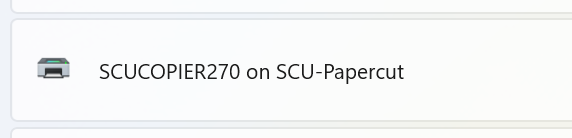 |
| with a right-mouse click, select to "remove" button to remove the printer definition. |
 |
|
STEP 2 - Reinstall the SCUCOPIER printer driver
|
| Now that you have deleted the printer definition, you must manually reinstall the same SCUCOPIER that you just deleted. In order to do that, bring up a search bar (or enter in the search bar), \\SCU-Papercut |
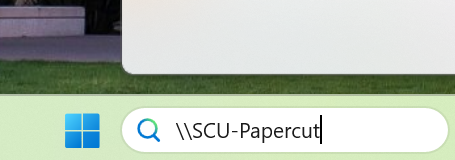 |
| It will then bring up the "SCU-Papercut" install folder and list many SCUCOPIER install packages on campus. Search for the printer that was just deleted, i.e. SCUCOPIER270 in our example, and double-click on that install icon to initiate the re-installation process of SCUCOPIER270 printer drivers and its definition. NOTE: If you are on 2nd floor, then you will select SCUCOPIER269 or SCUCOPIER274. |
|
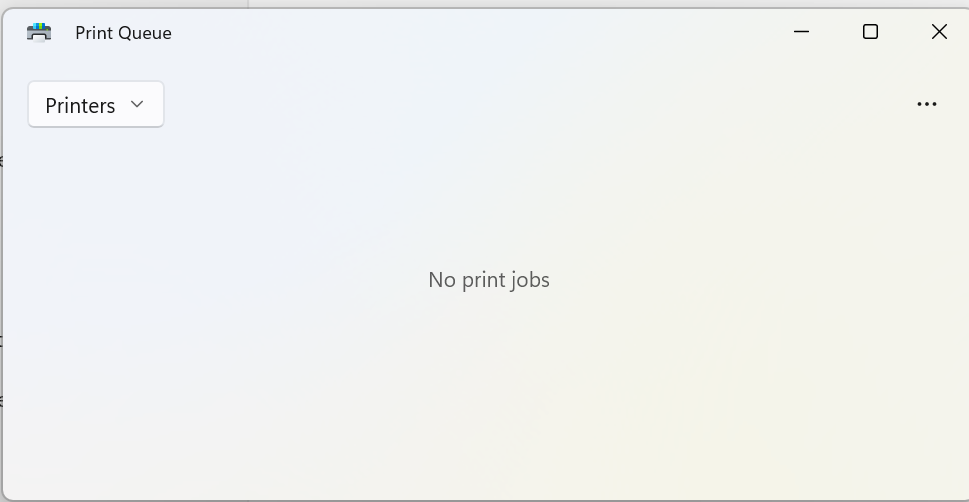
STEP 3 - Test print or release your print job.
|
 |
| |
|